App Lock: Photo Vault & Locker
Keep your chats, photos and apps private, and see who tried to get in.
What it does
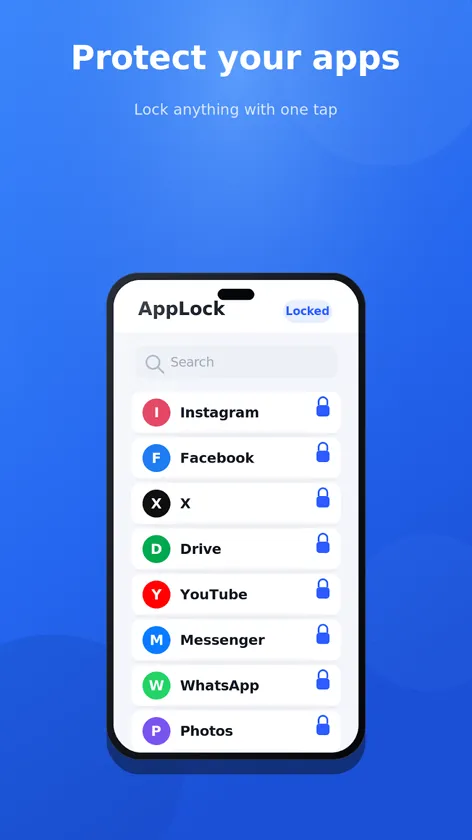
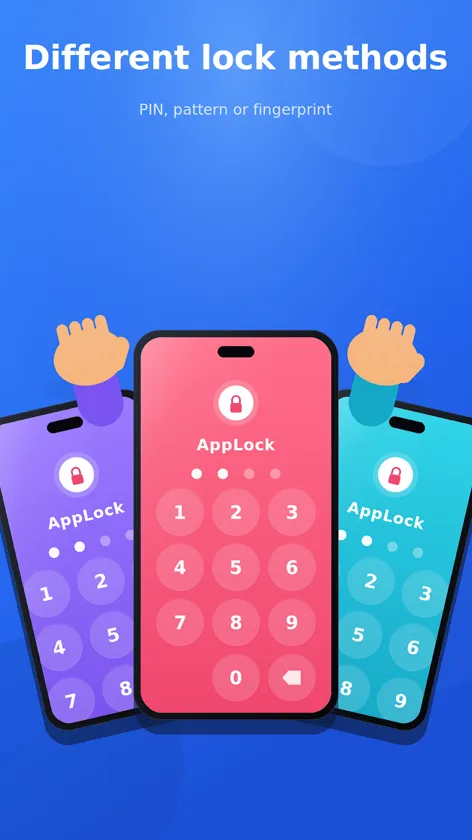
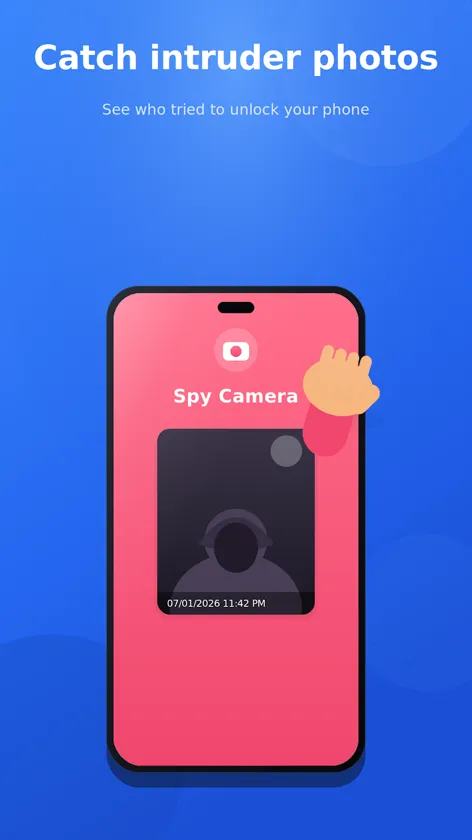
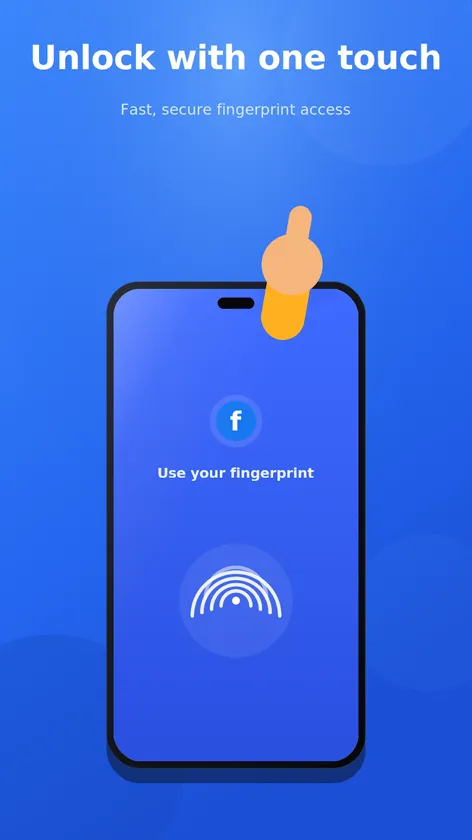
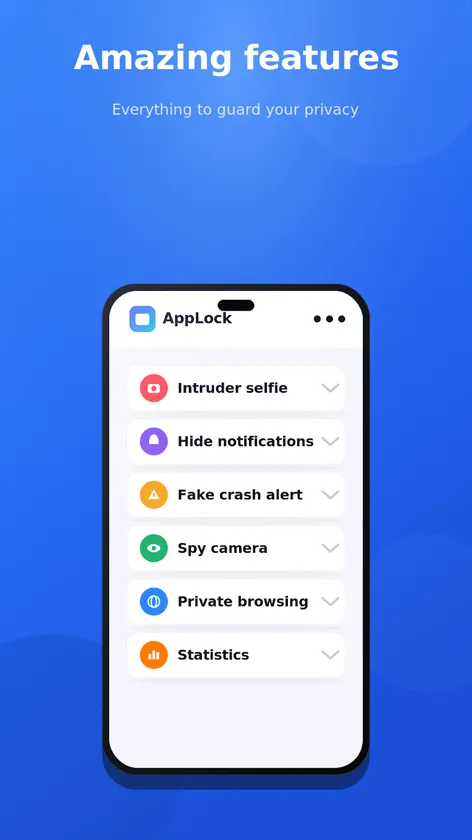
App Lock: Photo Vault & Locker adds a PIN, pattern or fingerprint lock to the apps you choose: chats, gallery, email, social media or payment apps. If someone enters the wrong PIN, the app can take an intruder selfie with the front camera and save it with the time and the app they tried to open.
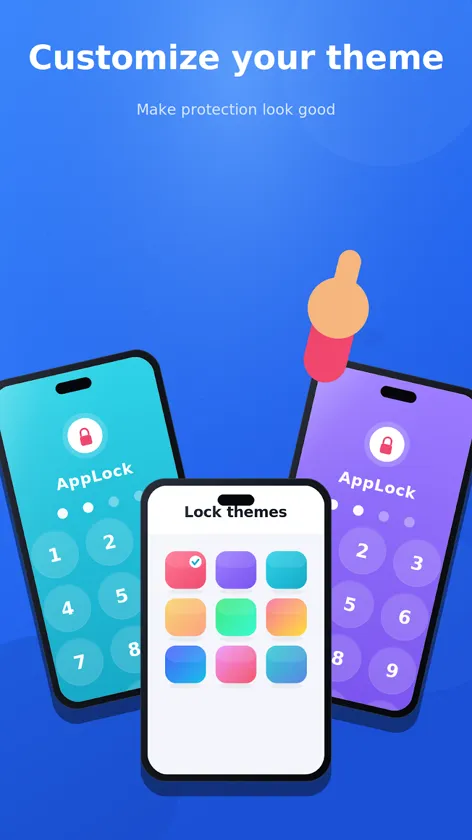
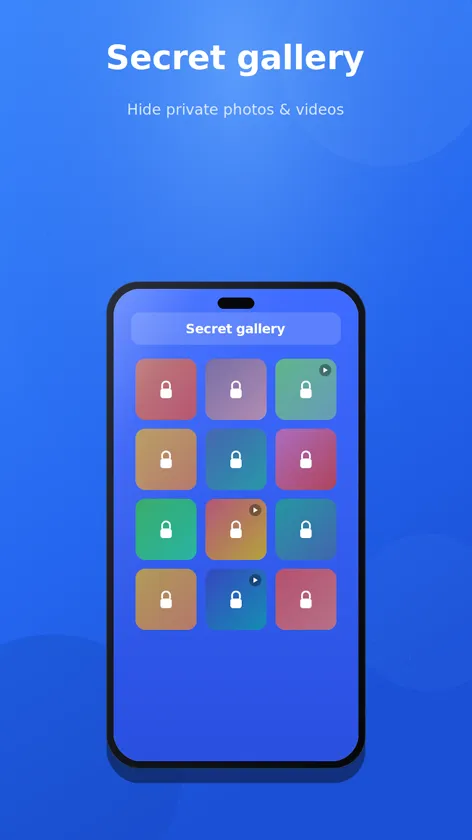
Private photos and videos can be moved into an encrypted vault, where they no longer appear in your gallery. Disguise mode can make the app look like a calculator, and themes let you change how the lock screen looks.
It works offline and does not need an account. Your photos, videos and intruder pictures stay on your phone and are never uploaded.
Features
- Lock any app with a PIN, pattern or fingerprint
- Intruder selfie after wrong PIN attempts, stored only on your device
- Encrypted photo and video vault
- Disguise mode that looks like a calculator
- Lock screen themes and colors
- Works offline, no sign-up needed
Frequently asked questions
Where are my hidden photos stored?
Only on your phone, inside the app's encrypted vault. They are never uploaded. Uninstalling the app can delete them, so move them back to your gallery before you uninstall.
Why does it need usage access and display over other apps?
Android only lets an app locker know which app you just opened through usage access, and it needs to draw over other apps to show the lock screen in front of them. Neither is used for anything else.
What permissions does the app use?
- Usage access: detects which app is opening so the lock screen can appear in front of it.
- Display over other apps: shows the lock screen on top of the app you locked.
- Camera (optional): takes the intruder selfie. Photos stay on your device.
- Fingerprint (optional): lets you unlock with your fingerprint instead of your PIN.
- Notifications: keeps app protection running in the background.
You can review or revoke permissions at any time in Settings > Apps > App Lock > Permissions.
How do I get help?
Email [email protected] with your phone model and a short description of the problem. We read every message.