
Step Tracker Launcher
Your steps, goal and progress, right on your home screen.
What it does
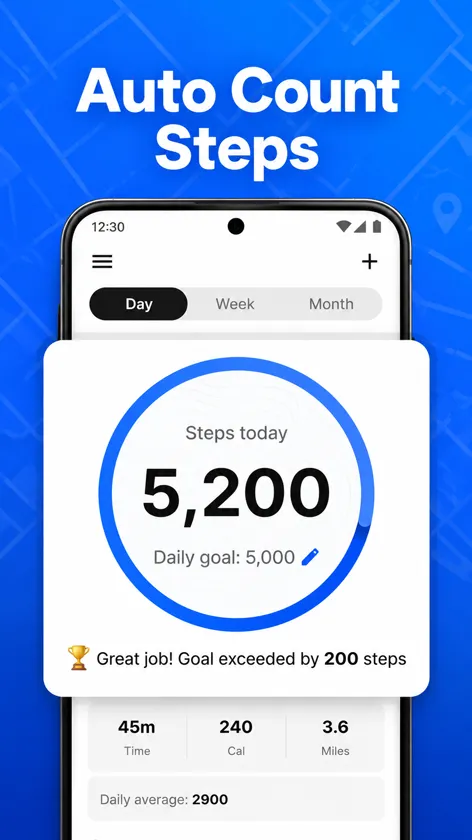
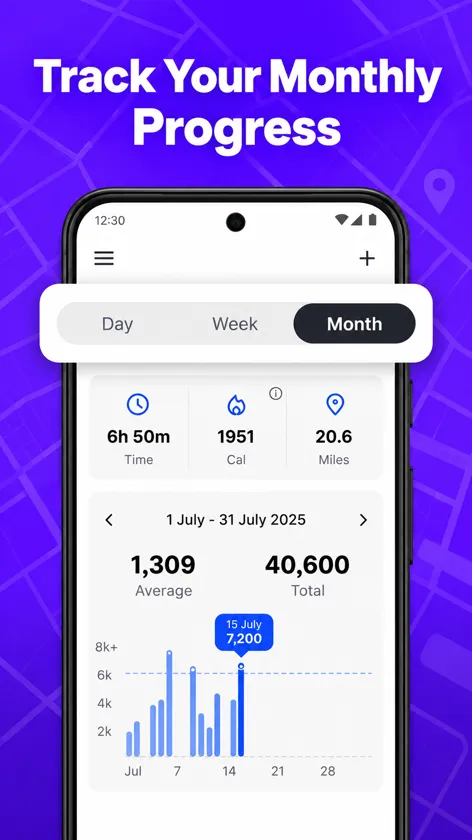
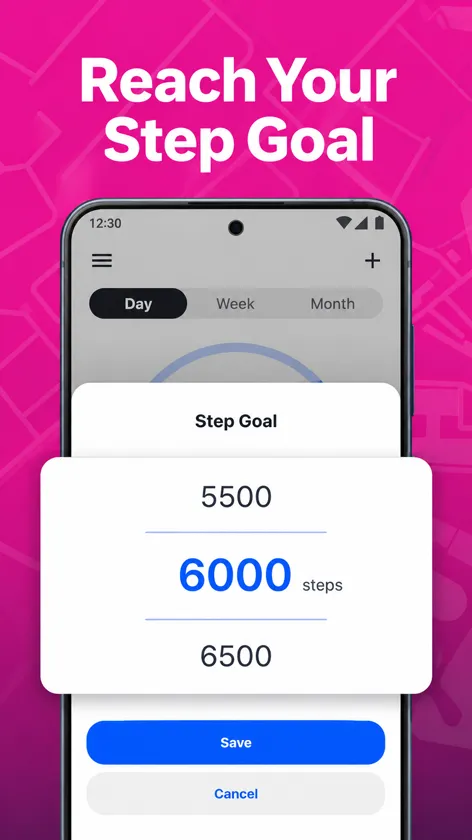
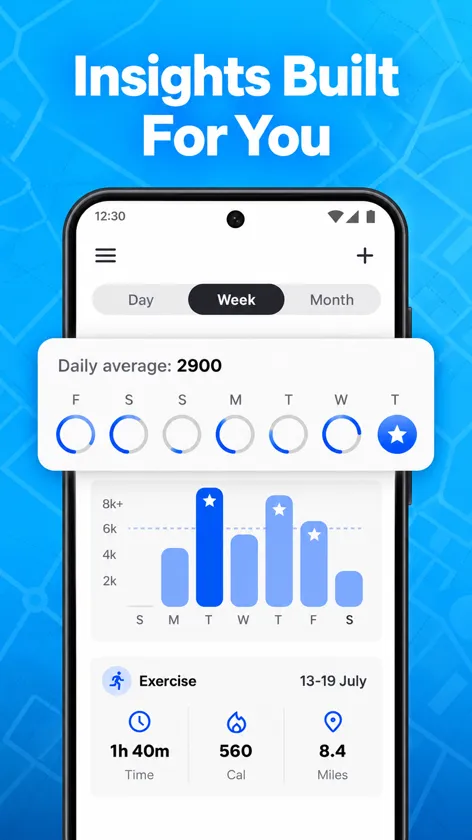
Step Tracker Launcher counts your steps automatically using your phone's built-in motion sensors, with no extra device to wear. Set a daily goal, watch your progress through the day and look back at weekly and monthly charts.
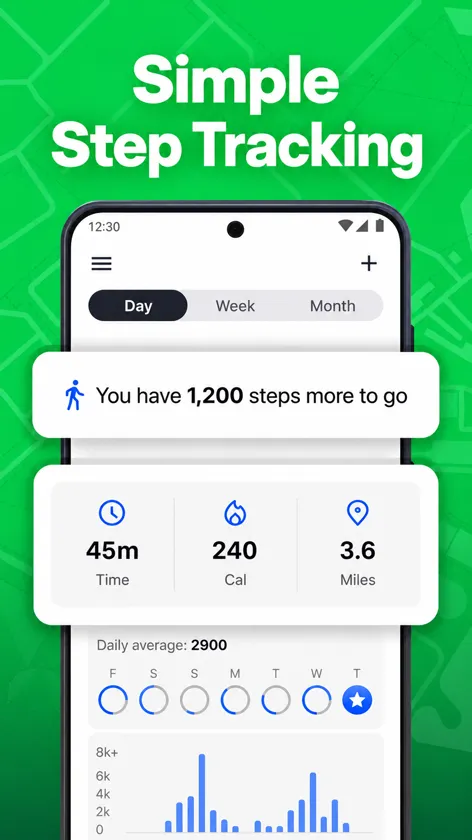
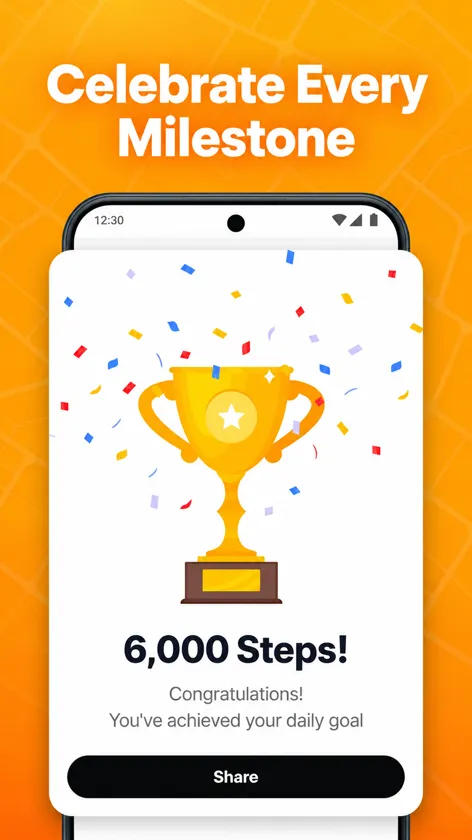
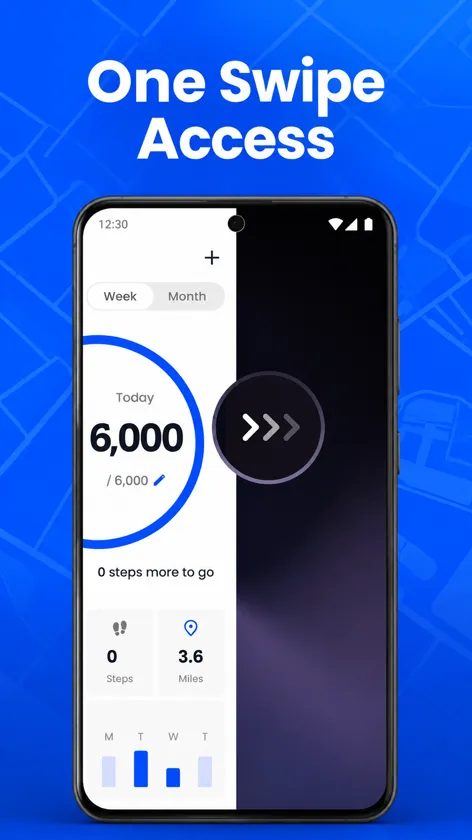
Each day also shows active time, estimated calories and distance, and the app celebrates when you reach a milestone. As a launcher, your step count is always one swipe from your home screen.
Features
- Automatic step counting with your phone's sensors
- Daily goal you can adjust
- Day, week and month views with averages and totals
- Active time, calories and distance estimates
- Milestone celebrations
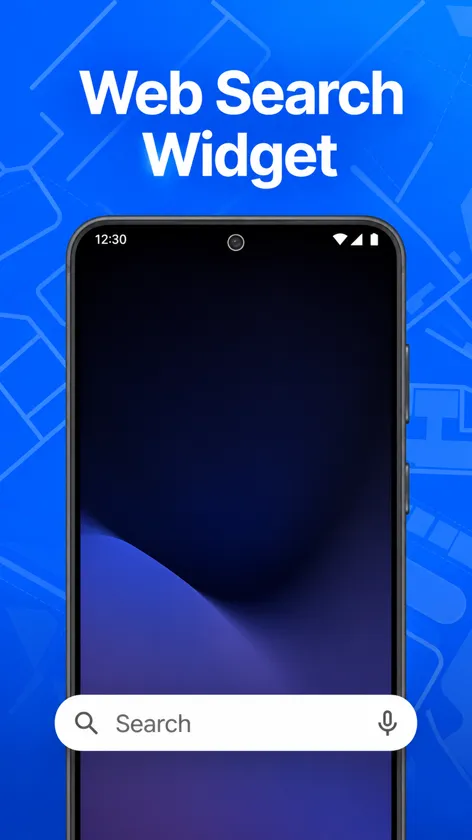
- Steps one swipe from your home screen, plus a web search bar
Frequently asked questions
How do I set Step Tracker Launcher as my launcher?
On most Android phones: open Settings > Apps > Default apps > Home app and pick the app. On Samsung Galaxy phones the path is Settings > Apps > Choose default apps > Home app. Menu names can vary a little by manufacturer and Android version. The app also walks you through this the first time you open it.
How do I go back to my previous home screen?
Open the app menu and tap Disable (or use Change Default Launcher in the Help section), then choose your previous home app, for example One UI Home on Samsung or Pixel Launcher on Pixel phones. You can also go to Settings > Apps > Default apps > Home app at any time. Nothing is deleted: your apps, photos and settings stay exactly where they were.
Will I lose my apps or data?
No. A launcher only changes your home screen and app drawer. All of your apps, accounts, photos and settings stay the same, and you can switch back whenever you want.
What permissions does the app use?
- Physical activity: lets the app read your phone's step counter sensor.
- Notifications: shows your current step count and keeps counting reliable in the background.
- Home app role: lets the app act as your launcher. You can switch back at any time.
You can review or revoke permissions at any time in Settings > Apps > Step Tracker Launcher > Permissions.
How do I get help?
Email [email protected] with your phone model and a short description of the problem. We read every message.
Related guides
How Many Steps a Day Should You Aim For?
Where the 10,000-step goal came from, what research generally says about daily steps, and how to set a realistic personal target you can build on.
How to Count Steps Accurately With Your Phone
How Android phones count steps, why your phone and watch disagree, and the settings, permissions and habits that keep your step count accurate.
What Is an Android Launcher?
A plain-English guide to Android launchers: what they change, what stays the same, how to set or switch your home app, and what permissions they need.