Volume Control Launcher
A louder phone and every volume slider, one swipe from your home screen.
What it does
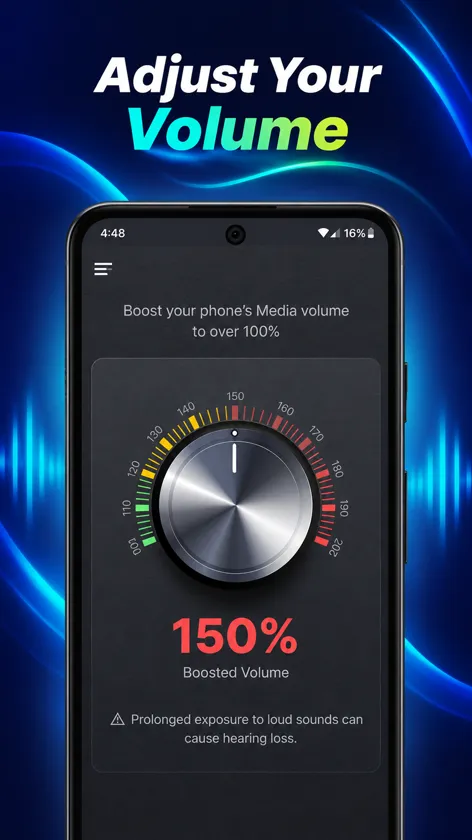
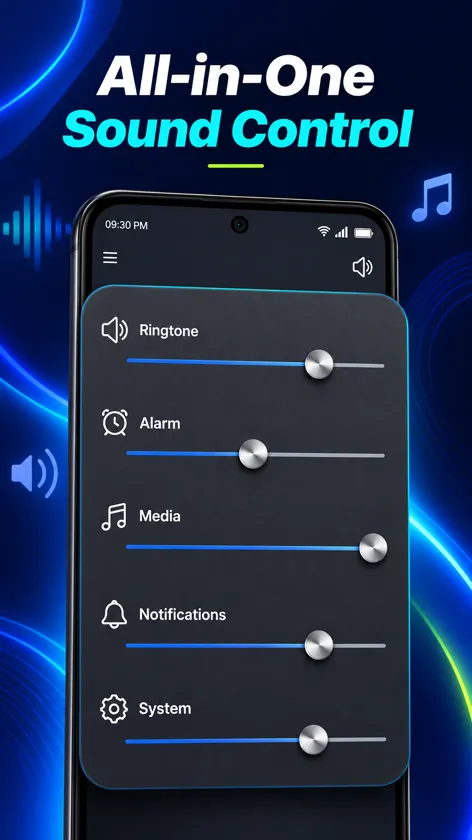
Volume Control Launcher puts sound first. Its booster lets you raise media volume beyond the normal maximum when a video, podcast or call through the speaker is simply too quiet, and a single panel gathers the ringtone, alarm, media, notification and system sliders so you no longer have to hunt through settings.
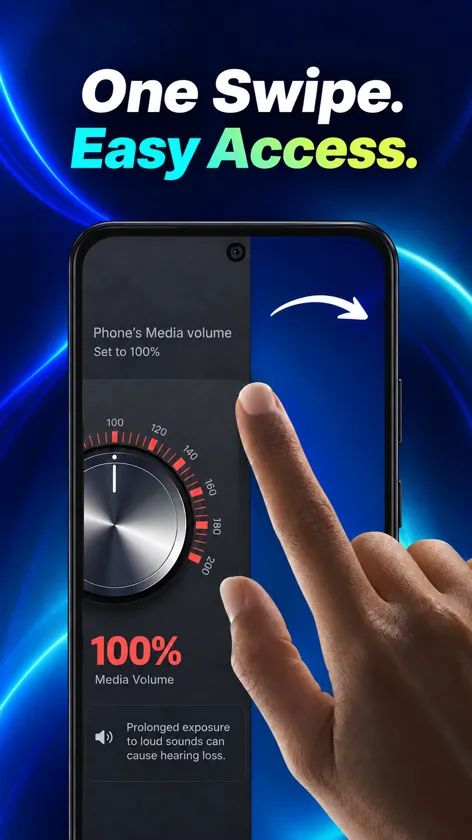
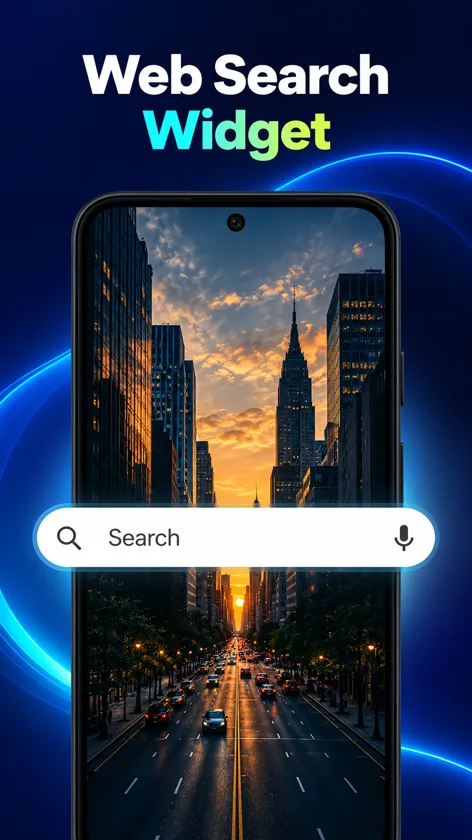
Because it is also a home screen app (a launcher), the booster is always one swipe away: swipe right from your home screen and you are there. Your apps stay where they are, and you keep a clean home screen with a clock, local weather, a web search bar and a news feed.
Louder is not always better for your ears. The app shows a clear warning before you push the volume into the higher range, and we recommend boosting only when you need it.
Features
- Volume booster that raises media volume above 100%
- All sound controls in one place: ringtone, alarm, media, notifications and system
- Booster panel one swipe right from your home screen
- Home screen with clock, weather, search bar and news
- Wallpapers, app folders and an app drawer that stays out of your way
- Safe-listening warning before high boost levels
Frequently asked questions
How do I set Volume Control Launcher as my launcher?
On most Android phones: open Settings > Apps > Default apps > Home app and pick the app. On Samsung Galaxy phones the path is Settings > Apps > Choose default apps > Home app. Menu names can vary a little by manufacturer and Android version. The app also walks you through this the first time you open it.
How do I go back to my previous home screen?
Open the app menu and tap Disable (or use Change Default Launcher in the Help section), then choose your previous home app, for example One UI Home on Samsung or Pixel Launcher on Pixel phones. You can also go to Settings > Apps > Default apps > Home app at any time. Nothing is deleted: your apps, photos and settings stay exactly where they were.
Will I lose my apps or data?
No. A launcher only changes your home screen and app drawer. All of your apps, accounts, photos and settings stay the same, and you can switch back whenever you want.
What permissions does the app use?
- Notifications: keeps the volume boost running in the background and shows its on/off control.
- Home app role: lets the app act as your launcher. You can switch back at any time.
- Approximate location (optional): shows local weather on the home screen.
You can review or revoke permissions at any time in Settings > Apps > Volume Control Launcher > Permissions.
How do I get help?
Email [email protected] with your phone model and a short description of the problem. We read every message.
Related guides
How to Make Your Android Phone Louder
Practical ways to get more volume from your Android phone, from built-in sound settings and a clean speaker to booster apps used with care.
Why Is My Phone Volume Low? A Troubleshooting Guide
Step-by-step checks for low volume on Android, from Do Not Disturb and Bluetooth to volume limiters, accessibility settings, and hardware problems.
How to Protect Your Hearing When Using Headphones
Simple safe-listening habits for headphones and earbuds, including the 60/60 guideline, Android sound warnings, and noise cancelling.