
QR & Barcode Scanner Launcher
Point, scan, done. QR codes and barcodes from your home screen.
What it does
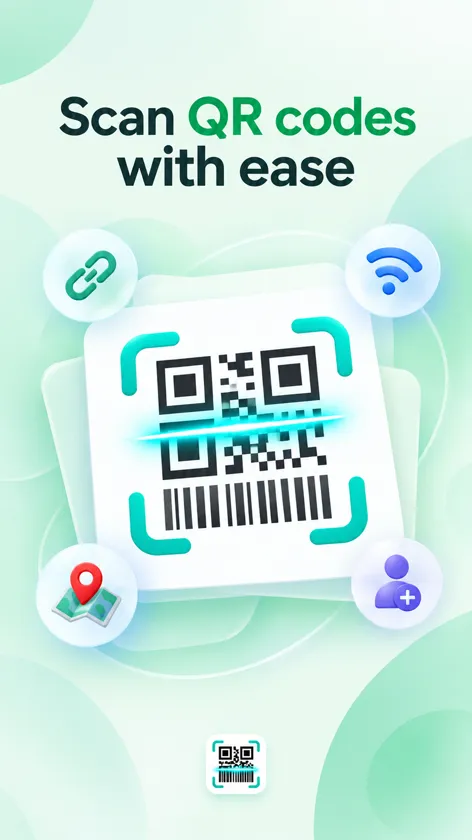
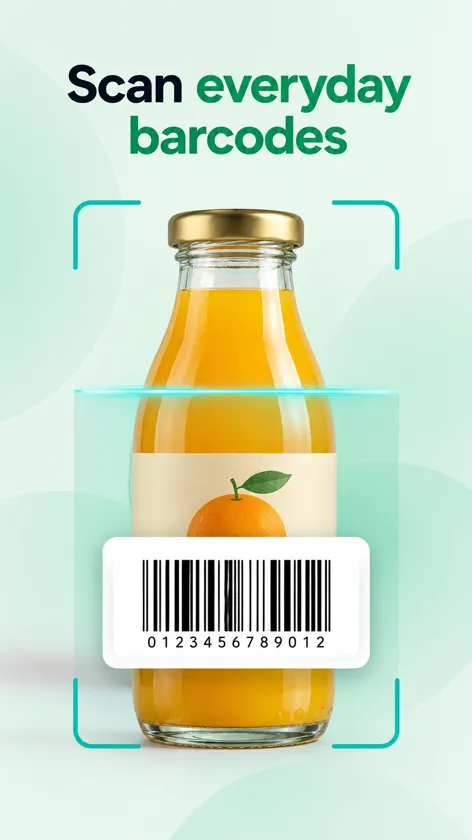
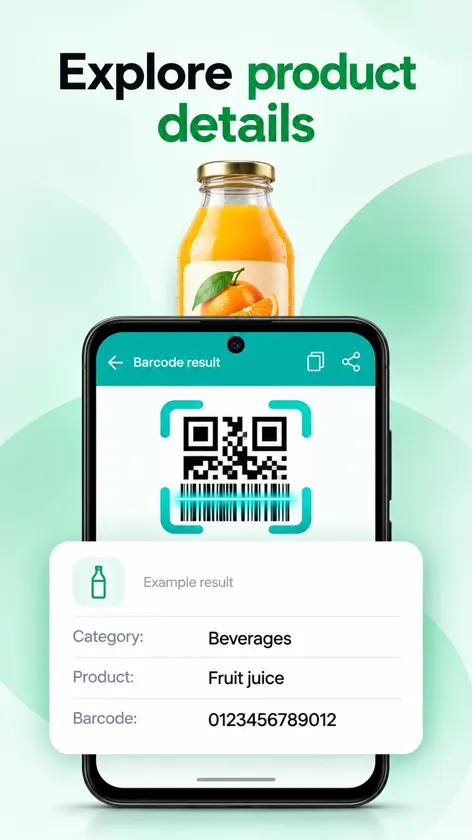
QR & Barcode Scanner Launcher reads QR codes and the barcodes printed on everyday products. It shows what a code contains before you act on it, whether that is a website, Wi-Fi network details, a contact card or a product number.
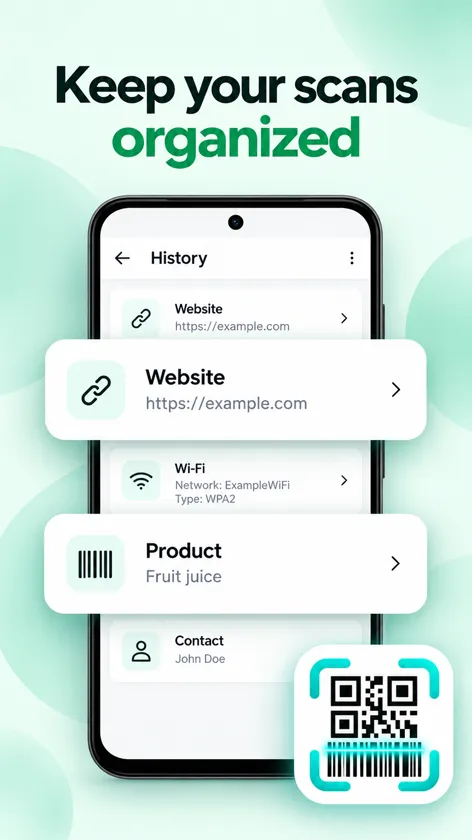
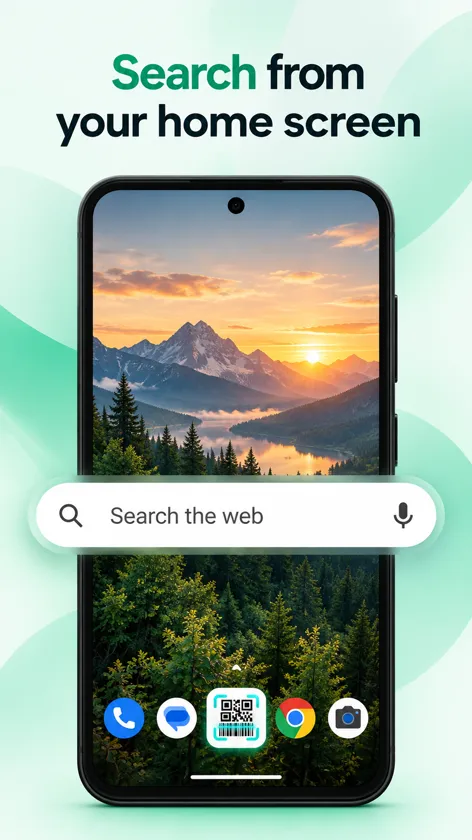
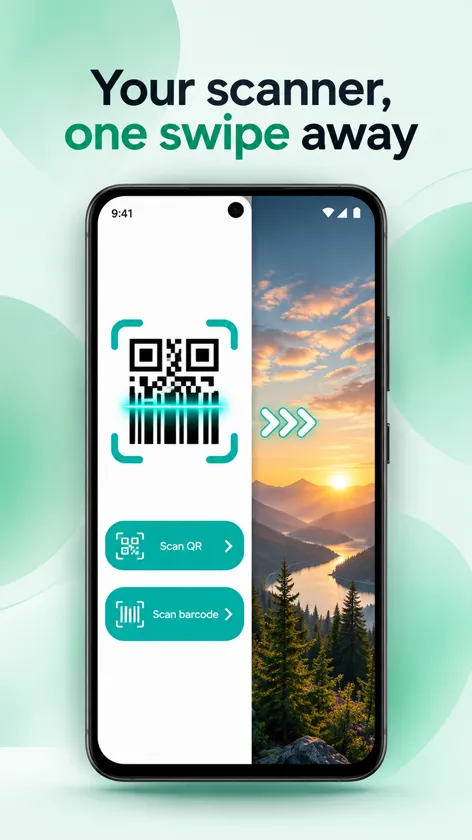
Every scan is saved to an organized history so you can find a link or product again later. And because it is also a launcher, the scanner sits one swipe from your home screen, next to a web search bar.
Features
- Fast scanning of QR codes and common barcodes
- Clear preview of links, Wi-Fi details and contacts before you open them
- Product details from barcodes
- Organized scan history
- Scanner one swipe from your home screen
- Web search bar on the home screen
Frequently asked questions
How do I set QR & Barcode Scanner Launcher as my launcher?
On most Android phones: open Settings > Apps > Default apps > Home app and pick the app. On Samsung Galaxy phones the path is Settings > Apps > Choose default apps > Home app. Menu names can vary a little by manufacturer and Android version. The app also walks you through this the first time you open it.
How do I go back to my previous home screen?
Open the app menu and tap Disable (or use Change Default Launcher in the Help section), then choose your previous home app, for example One UI Home on Samsung or Pixel Launcher on Pixel phones. You can also go to Settings > Apps > Default apps > Home app at any time. Nothing is deleted: your apps, photos and settings stay exactly where they were.
Will I lose my apps or data?
No. A launcher only changes your home screen and app drawer. All of your apps, accounts, photos and settings stay the same, and you can switch back whenever you want.
What permissions does the app use?
- Camera: used only to read codes in front of the lens. Images are not stored or uploaded.
- Home app role: lets the app act as your launcher. You can switch back at any time.
You can review or revoke permissions at any time in Settings > Apps > QR & Barcode Scanner Launcher > Permissions.
How do I get help?
Email [email protected] with your phone model and a short description of the problem. We read every message.
Related guides
How to Scan a QR Code Safely on Android
Learn how to scan QR codes on Android, check the link before you open it, and spot the warning signs of a malicious or tampered code.
QR Code vs. Barcode: What's the Difference?
How QR codes and barcodes store information, the most common types you will see, what each is used for, and tips for getting a clean scan.
What Is an Android Launcher?
A plain-English guide to Android launchers: what they change, what stays the same, how to set or switch your home app, and what permissions they need.